
Founder contribution from Narendhiran Vijayakumar, BustimeFinder.com
If you are catching a familiar bus, a route number may be all you need. An unfamiliar journey raises more questions: which direction should you take, where is the boarding stop, and does that departure continue to your destination? For an Upper Hutt resident helping a visitor reach Petone, being able to send a page showing the journey can be useful before either person heads out.
BustimeFinder.com is an independent bus-information website developed by Narendhiran Vijayakumar. It brings published timetables, stop details and mapped journeys into a browser. The site is an unfunded project built by one person and supported by advertising. Its Upper Hutt pages use data published by Wellington Metlink; BustimeFinder is independent of Metlink and does not operate the buses.
Start with the route and the date
A local example is route 110, listed on BustimeFinder as “Emerald Hill – Upper Hutt – Lower Hutt – Petone”, with Tranzit Coachlines shown as the operator. Open the route page and check the service date before looking at the times. A timetable for Wednesday should not be assumed to describe a Sunday or a public holiday.
For this walkthrough, Wednesday 14 October 2026 was selected. The page displayed 106 scheduled journeys, grouped by their direction and endpoints. That is a snapshot of the published records displayed for one date, rather than a count of buses currently on the road. The page includes journeys from Emerald Hill towards Petone and return journeys, including some terminating at Upper Hutt.
Read the group heading as well as the route number. The same number can cover journeys with different starting points or destinations. If you are travelling towards Petone, choose a departure in the relevant Petone-bound group. The timetable is wide, so scroll sideways or use the later-departures link to inspect the rest of the day.
Read the time at your own stop
The time at the top of a timetable column is the journey’s departure time. It may be from somewhere other than the stop where you intend to board. Find your stop in the calling-point list and read the time in that same column, keeping the date and direction in mind.
One example displayed for 14 October starts at Emerald Hill – Gemstone Drive at 06:38 and is planned to reach Petone Station – Stop B at 07:48. On that journey, Upper Hutt Station – Stop B is listed at 06:52, Silverstream Station – Fergusson Drive at 07:04, and Hutt Hospital – High Street at 07:24. These are published planned times, not confirmation that the bus arrived at those times.
The distinction matters when explaining a journey to someone else. A message saying “take the 06:38 bus” could be confusing for a passenger boarding at Upper Hutt Station. Sending the journey link and identifying the stop and its planned time gives that person more useful context. Recheck the current page and official travel information before setting off.
Open one departure to see its stops and map
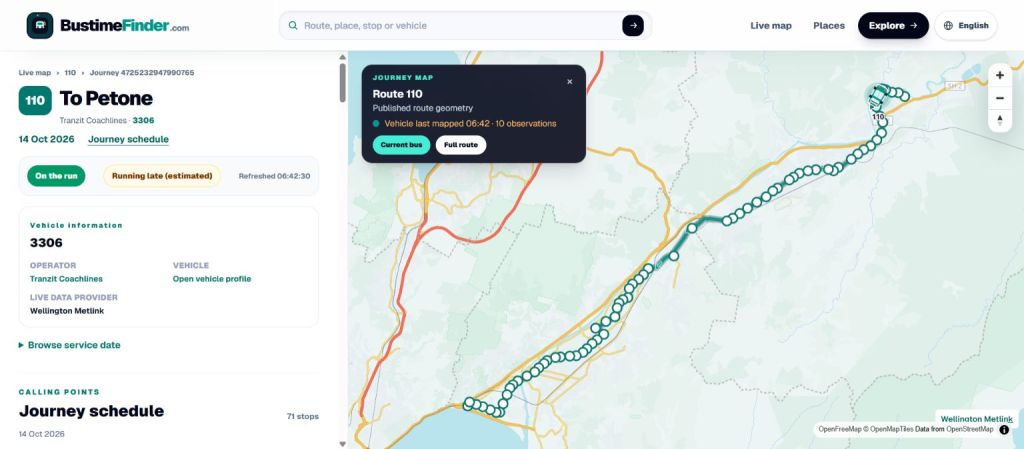
Click a departure time to open its individual trip page. The current example shows “To Petone”, the selected date and 71 calling points. Its map displays published route geometry with the stops alongside the ordered list. Scheduled times carry the label “PLAN”; live journey pages add available observations and estimates separately.
This view helps answer a practical question: is the destination actually on this particular journey? Follow the calling points from the boarding stop to the intended stop rather than assuming every departure serves the whole route. Stop names are links, so you can open the associated stop page for another look at the location and available information.
The pages can be shared using their browser addresses. The example trip link includes the selected date, which helps a relative or visitor inspect the same dated journey. A shared link does not reserve a seat, buy a ticket or guarantee a connection. It is a way to discuss the route and timetable with the same information in front of you.
Treat a timetable and a vehicle report differently
BustimeFinder also has vehicle and map views, but availability depends on what the source supplies and what is available on the site. At the current check on 14 October, the 06:38 Petone-bound journey showed vehicle record 3306 as “On the run”. Its screenshot displayed a last-mapped time of 06:42 New Zealand daylight time and “Running late (estimated)”. That describes the evidence at capture, rather than a lasting statement about the service.
Check the observation time and any freshness label when you visit. The page refresh time is a separate detail. A previous position does not prove where a bus is now, and an expected arrival is a prediction. The ≈ symbol marks estimated stop passages; they are not confirmed arrivals. The site also explains that intermediate timetable times are shown only when the upstream record provides them. A blank entry should not be filled in by guesswork.
Use official advice for the final travel check
Metlink remains the source to check for current disruptions, fares, ticketing, accessibility information and wider journey planning. BustimeFinder’s useful role here is narrower: showing a dated bus journey, its supplied calling points and its map in a form you can inspect and share.
Try the route page with a journey you already know, then open a departure and check the stop you would use. That small exercise makes the labels and layout easier to understand before you rely on them for an unfamiliar trip. For visitors and residents alike, the important detail is the journey they plan to take, not just the number displayed on the bus.
Founder contribution from Narendhiran Vijayakumar, BustimeFinder.com. The text was prepared with AI assistance and checked against the displayed route information.
A “thank you” to Narendhiran Vijayakumar for sending this article to The Upper Hutt Connection.
14/10/26

